

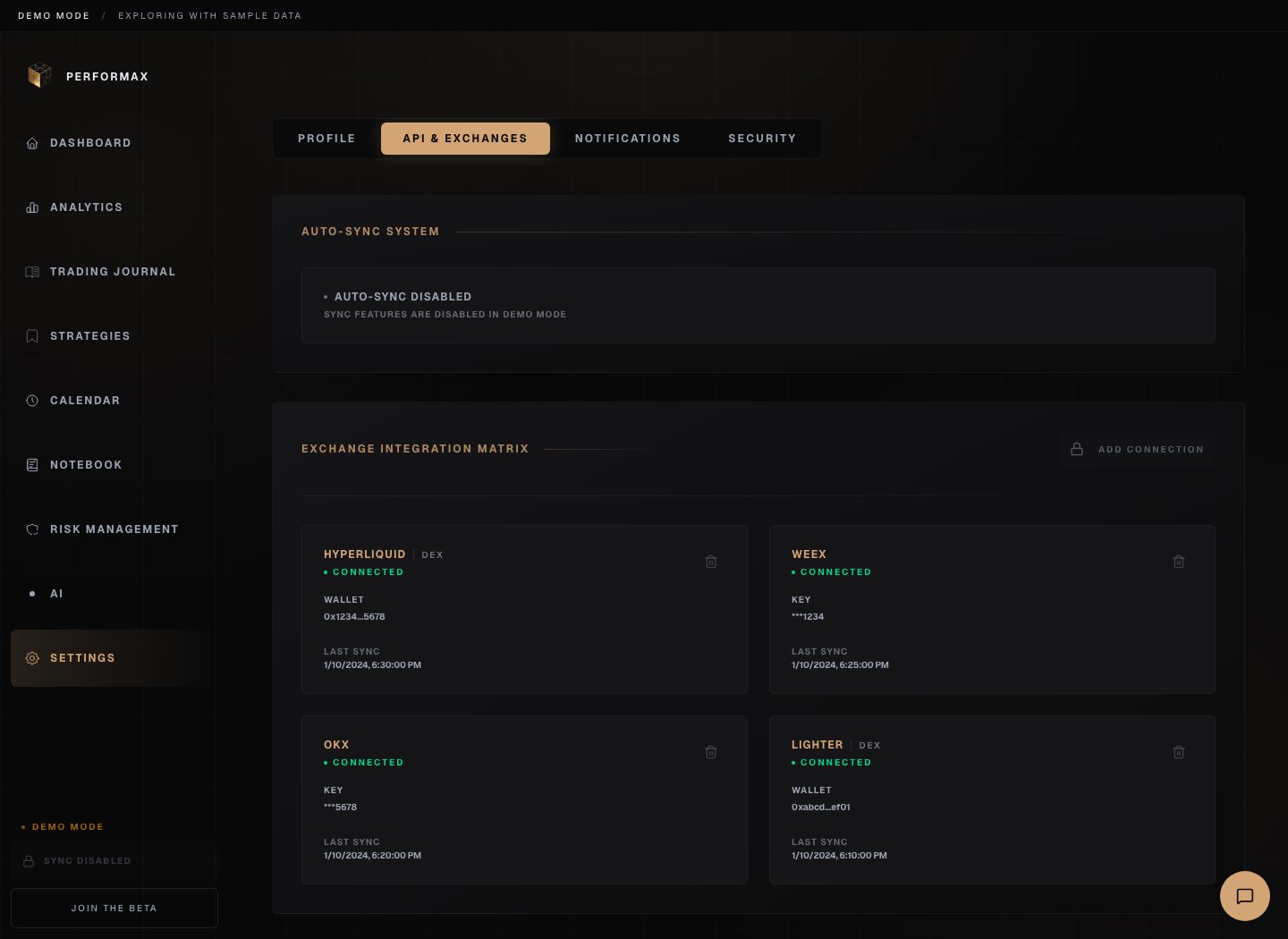
Supported exchanges
Before you connect
Prepare:- A read-only key created directly on the exchange.
- Trading permission disabled.
- Withdrawal permission disabled.
- API secret and passphrase copied once when the exchange shows them.
- IP restrictions disabled unless support has confirmed the current Performax outbound IP guidance.
Binance
Binance covers three product lines: Spot, USD-M futures, and COIN-M futures. When you add the account you choose which of these Performax tracks. Spot and USD-M futures are selected by default; COIN-M is opt-in.- Open Binance API Management.
- Create a new system-generated API key.
- Enable Reading only. Do not enable spot, margin, or futures trading. Do not enable withdrawals.
- Copy the API key and secret key. Binance shows the secret only once.
- In Performax, open Settings → API & Exchanges → Add Account.
- Select Binance.
- Paste the API key and secret.
- Choose the products to track: Spot, USD-M futures, COIN-M futures.
- Add a clear account label.
- Save.
OKX
- Open OKX API Management.
- Create a new API key.
- Set the key for read-only access. Disable order placement and withdrawal capability.
- Set a passphrase. This is not your OKX login password.
- Copy the API key, secret key, and passphrase.
- In Performax, open Settings → API & Exchanges → Add Account.
- Select OKX.
- Paste the API key, secret, and passphrase.
- Add a clear account label.
- Save.
WEEX
- Open WEEX API Management.
- Create a new API key.
- Set permissions to read-only. Disable order placement and withdrawals.
- Set a passphrase.
- Copy the API key, secret key, and passphrase.
- In Performax, open Settings → API & Exchanges → Add Account.
- Select WEEX.
- Paste the API key, secret, and passphrase.
- Add a clear account label.
- Save.
Hyperliquid
- Open Hyperliquid.
- Connect the wallet you trade with.
- Generate an API key if your account setup exposes one.
- In Performax, open Settings → API & Exchanges → Add Account.
- Select Hyperliquid.
- Enter the requested wallet and credential fields.
- Add a clear account label.
- Save.
Lighter
Lighter uses your wallet address to identify the account and an API token for private account data.- Open Lighter.
- Connect the wallet you trade with.
- Open the account or API settings.
- Generate an API token.
- Copy the wallet address and API token.
- In Performax, open Settings → API & Exchanges → Add Account.
- Select Lighter.
- Paste the wallet address in the API key field.
- Paste the API token in the secret field.
- Add a clear account label.
- Save.
Account limits
Centralized exchanges are limited to one connected account per exchange. Wallet-based exchanges can support multiple wallets, subject to plan limits. If the app blocks a new connection, remove an unused account or check the plan limit shown in the UI.Auto-sync
After a successful connection:- First sync imports historical trades and account data.
- Live or near-real-time updates run while the app is open when supported.
- Background sync keeps accounts fresh on a regular cadence.
- Manual sync is available from the app sidebar and account cards.
Troubleshooting
Invalid key
Create a fresh read-only key. Most exchanges show the secret only once.Passphrase error
Re-enter the exact API passphrase created with the key. It is case-sensitive and is not your exchange login password.IP restriction error
Remove the IP restriction or contactsupport@performax.ai for the current allowlisting guidance.
No trades imported
Check:- The selected account has closed trades.
- The first sync has finished.
- The date range includes the trades.
- The exchange API exposes that history.